Setting up a WebDAV connection
Note: only Dreamweaver 8 will work for transferring files
via Vista's secure connection.
In Dreamweaver, any site outside of Dreamweaver is referred to as a remote
folder. In this case, the remote folder is your Vista File Manager.
- Open your browser and go to the Vista Log In page (http://vista.nau.edu).
- Log in using your jan id and password.
- Enter the class you would like to setup the WebDAV
connection for.
- Log on to the WebCT Vista website using your jan id and
password.
- In the Build tab, navigate to File Manager.
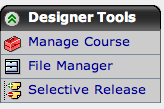
-
Click on the small grey action menu to locate the WebDAV
folder path.
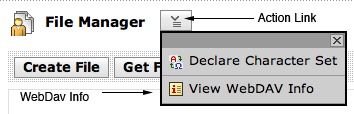
- The WebDAV address is automatically highlighted so you can
copy the information into Dreamweaver.
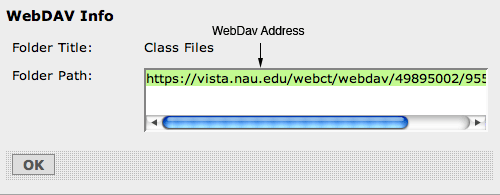
- Copy the WebDAV address (control+C = shortcut). This
information will be pasted into Dreamweaver when you set up the
connection.
Set Up the WebDAV Connection in Dreamweaver
- Open Dreamweaver
- In the Toolbar, Select Site > Manage Sites.
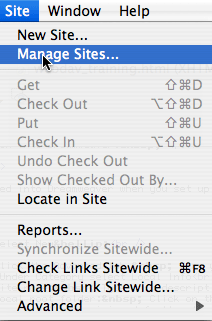
- The Manage Sites dialog box appears.
- When the Manage Sites dialog box appears, select New.
Select Site
- The Site Definition dialog box appears.
- Click the Advanced tab. You will set up the WebDAV
connection between your local and remote folders here.
In the Local Info Category
- Give a descriptive name to your site so you can identify
it quickly later. (ECI599_Fall2006)
- Select the Local root folder to point to a local folder on
your computer.
- If you will be using images, define your Default images
folder within your main folder.
- You do not have to define the info below the Default
images folder.
In the Remote Info Category
- Under Category select Remote Info
- Access: Select WebDAV
- Paste the URL copied from Vista into the URL box
(control+V to paste)
- Type in your jan id and password
- At this point, you can select Test
to connect to Vista.
- A File Activity dialog box will appear stating Connecting to Your
Course.
- A popup message will state Macromedia connected to your Web
server successfully.
Note: If you get an error message on the test, recheck your
password entry. If you change your jan password, you will have reenter the new
password.