Creating a Private Online Journal Using Bb Vista
Online journals are a private forum between you and your students. They are a fantastic tool that allows you to assess student learning on a frequent basis as well as gain insight into a student's interests, concerns, and values. Students often use an online journal to analyze and respond to the course readings. This tutorial explains how to create a private online journal in Bb Vista. Various features are covered, but not all. For more detailed information, download part of our Bb Vista training manual. This section, Communicating with Students, downloads the PDF that explains the grade book. There is also the online Bb Vista Help feature. When in the discussion tool, select the Help link at the top of the screen. You will find valuable information to help you set up your grade book.
How do I Create a Private Online Journal Using Bb Vista?
- Open your browser.
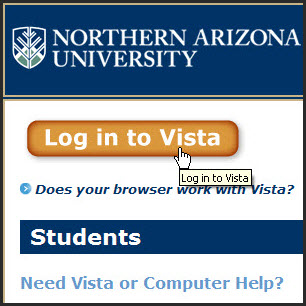
- Type http://vista.nau.edu in the address bar and select Go or Enter to get to the Vista login page.
- Log in to Vista and enter your username and password to go to your My Vista page.
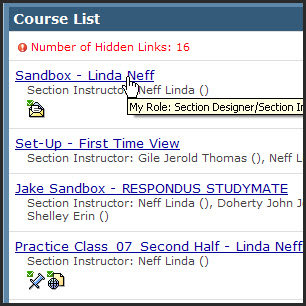
- Select the course link where you would like to create the online private journal.
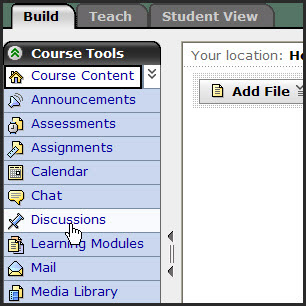
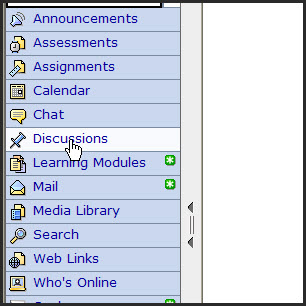
- Once you are in your course, select the Discussion tool under the Build tab.
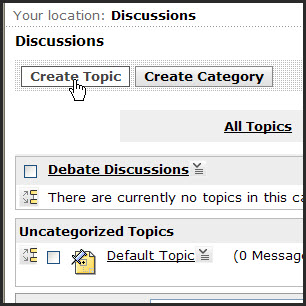
- Once you have opened the Discussions tool, select Create Topic.
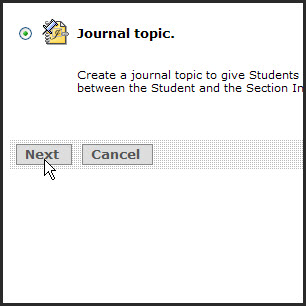
- For this tutorial, you will select the radial button next to Journal topic, and click Next.
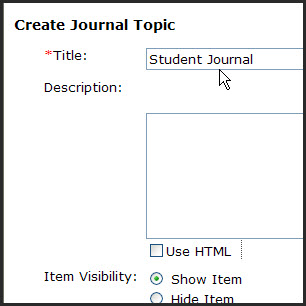
- In the Create Journal Topic property dialogue box type in the Title of your online journal.
- Next, type in the description of the journal including any directions or student expectations.
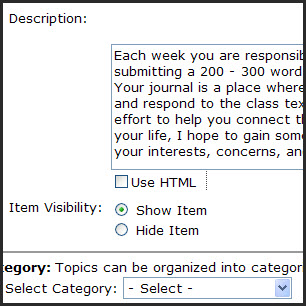
- If you want the students to see the journal item, select Show Item. Otherwise, you can select Hide Item.
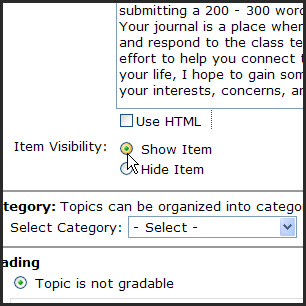
- You can also organize your journal topics by category. To do so, select Create New Category, and type in the Category Name (i.e., Class Journals).

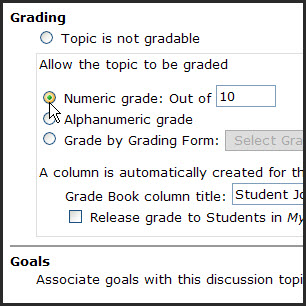
- There are several options for how you want to grade the journal topic.
How Do I View the Online Journal from a Student's Perspective?
- If you want to see what the students see, select the Student View tab.
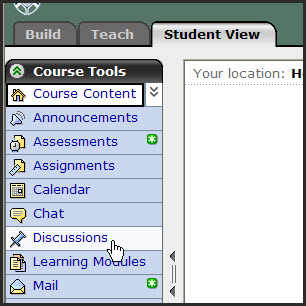
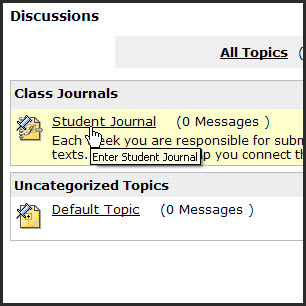
- Then, select the journal title link.
How Do I View Student Journal Entries as an Instructor?
- If you want to see what the instructor would see, select the Teach tab.

- Then, select Discussions.
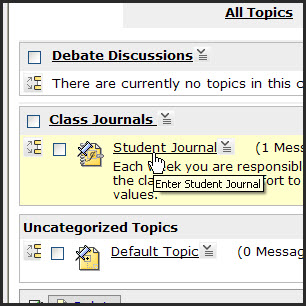
- Next, you will need to find and select the journal title link (i.e., Student Journal).
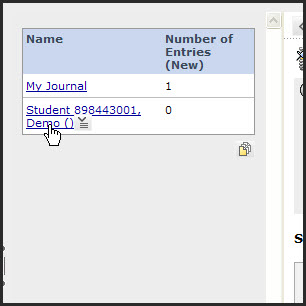
- In the Teach tab view, you can select a student name link to access their journal postings.