What is StudyMate?
StudyMate is a powerful authoring tool that lets you create ten Flash-based activities and games using three simple templates. The Flash activities can be used with any web server or published directly to Blackboard Vista. StudyMate will import items from MS Word files and publisher test banks, making it easy to create interesting, interactive activities from existing content. Best of all, you don’t have to know Flash programming or HTML to use StudyMate.
StudyMate Training
The e-Learning Center offers a free face-to-face workshop that covers both Respondus and StudyMate. View upcoming eLearning Center training schedule for dates and times .
Setting up StudyMate
Northern Arizona University has a campus-wide license for StudyMate. You can download StudyMate from the ITS Software Download Page. A full user’s guide can be found at the StudyMate site.
Obtaining a copy of StudyMate
- Open your browser
- In the address bar, type http://www.nau.edu/its/software/
- Select Software Downloads, and then Proceed to Software Downloads
- Log in using your jan id and password
- In the Search by Platform and Category drop down menus, select Windows and Development

- Select the Search button
- Choose StudyMate
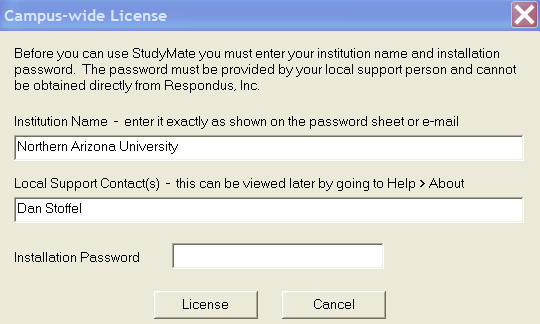
- The StudyMate download page page has very important information in red, including the institution name, local support contact, and the installation password. It is a good idea to keep this page open after you download StudyMate. When opening StudyMate, you can copy and paste the information into the appropriate fields.
- When you are ready to download the software, select Utilities/StudyMateCampus.exe (this is how it currently appears – the link may be named differently in future versions).
- To download the StudyMate manual select the link to the user guide in the Installation Notes.
- Choose the manual labeled with the WebCT 6 / Vista Personality. This will download the zipped version of a Word document.
Starting StudyMate on your computer
- Unzip the StudyMateCampus.exe file to open StudyMate
- When the Campus-wide License Window appears, enter the appropriate fields from the StudyMate download page.
Building and Editing Activities
Review the StudyMate User Guide and watch a demo movie with screen shots to learn how to build and edit the activities in StudyMate. After you import your questions from a .rtf or .doc file, you will want to publish it to your Vista course.
Publishing Activity to Your Vista Course
Preview the Activity
- Select the Preview & Publish tab

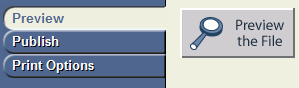
- In the Preview tab, select the Preview the File button to view your activity
- When you complete review, close the Preview window
Publish Activity to Vista
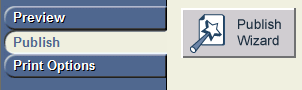
- In the Publish tab, choose the Publish Wizard button
- Select the activities you want to create by choosing from the list of activities available, then choose Next
- Select WebCT 6.x/Vista 4.x in the Course Management drop down menu, choose Next
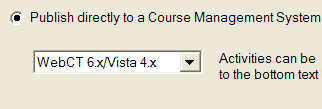
- On the Publish to WebCT 6.x/Vista 4.x server wizard, choose Standard Upload - SWF and HTML file in Learning Module or footer on Organizer Page

- In the WebCT 6 Server drop down menu, select add new server

- Open your browser, log in to vista.nau.edu
- Copy the Address or URL of the course home page from the browser address text box [Select All, CTRL + C]
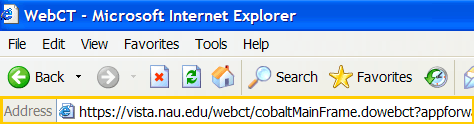
- Paste the address into the textbox on the WebCT 6 Server Information

- Press the Extract button
- The server domain should read, "https://vista.nau.edu"
- Select the Institutions button, and choose NAU-Institution from the drop down menu

- Enter a description such as Vista login, your jan username and password, and if you would like the computer to remember your username and password
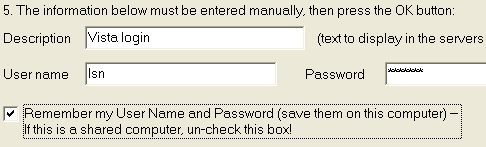
- To close the Server Settings window, select OK
- In the Settings box, the Server, Institution, and User name should be listed as illustrated below:
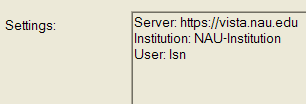
- Choose Next
- The StudyMate Publish Wizard connects to the vista server and lists your courses under the Group or Section drop down menu.
- In the Group or Section drop down menu, select the course where you want this activity to appear

- Select the Learning Module, Folder, or HTML file where you want the StudyMate activity to link to
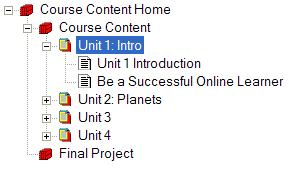
- Type in a file name for new HTML file where the activity will be added
Note: Be sure not to use special characters or spaces in your filename)

- Select Next
- Give the activity a title and any optional instructions that will be displayed to the students on the HTML page in Vista.
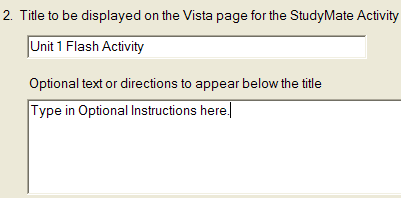
- Choose Don't display a title within the StudyMate activities themselves
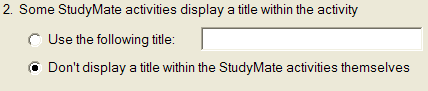
- Select Next
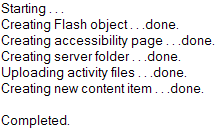
- In the status window, the publish process should say completed before you go into your Vista course to check your work.